Manual
Everything you need to know about using Scripture Moment.
Getting started
Open Scripture Moment at app.scripturemoment.com in your mobile or desktop browser. Sign in with your Google account. You can add the app to your home screen for quick access. On iPhone, follow Apple's Safari web app instructions. On Android, follow Google's Chrome web app instructions.

Choosing a reading plan
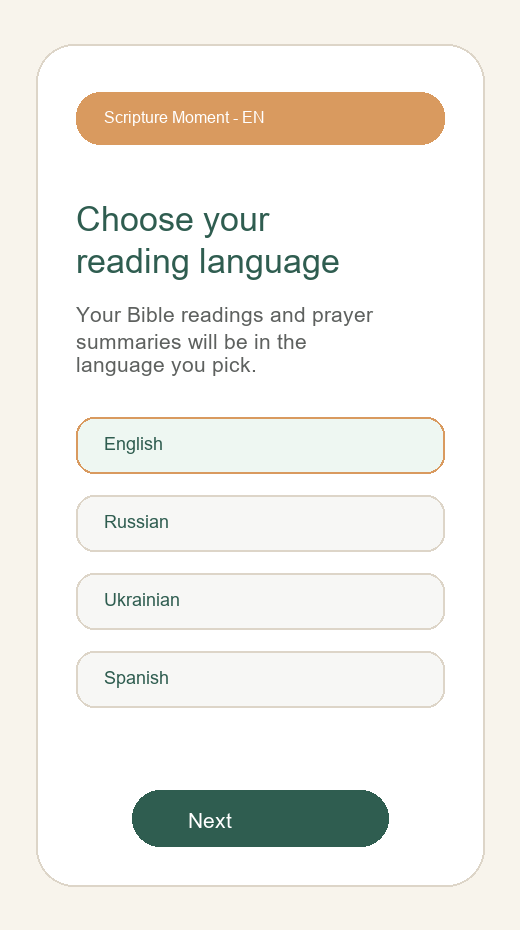
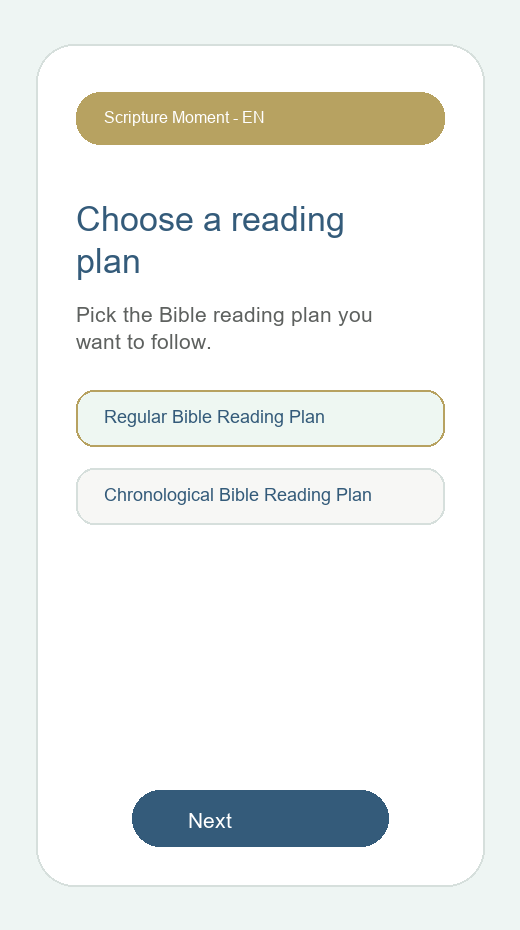
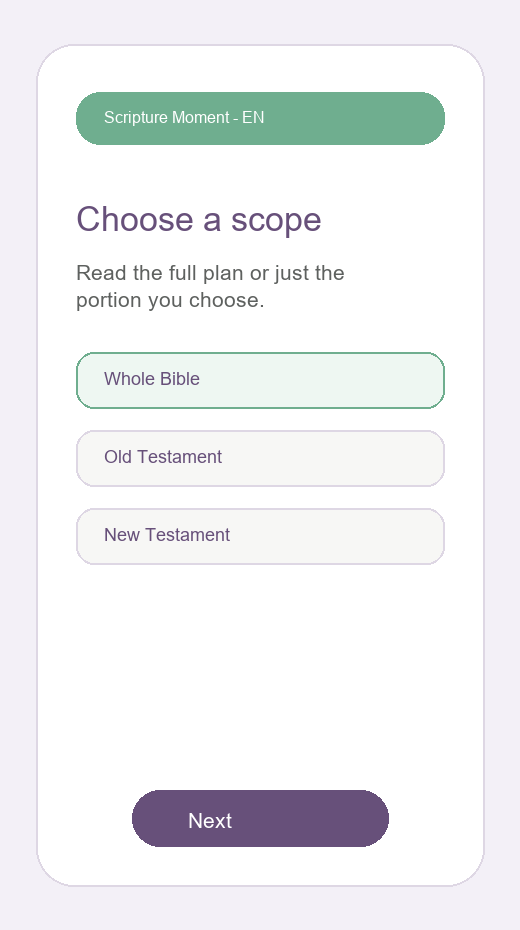
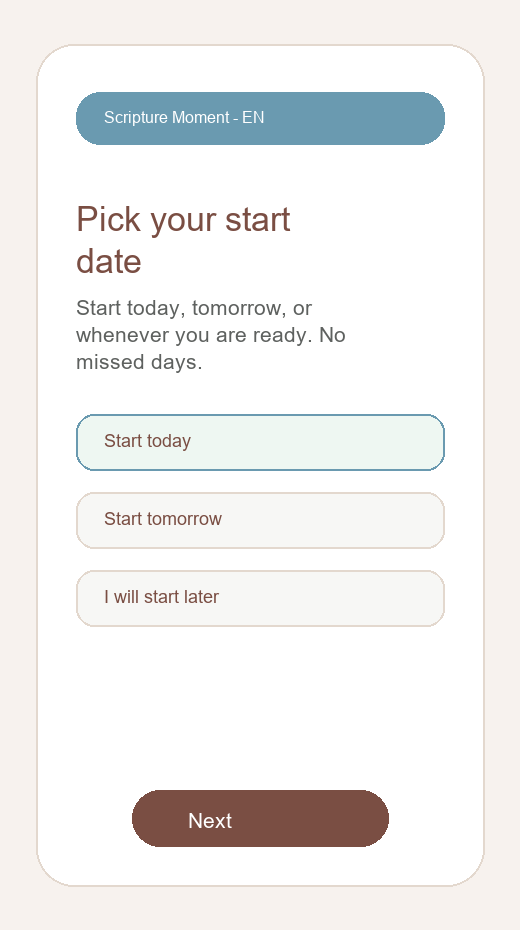
After signing in for the first time, you will be guided through setup:
- Choose your app language.
- Review the short orientation screens.
- Choose your reading language from the supported options.
- Choose a plan type: Chronological or Regular.
- Choose a scope: Whole Bible, Old Testament, or New Testament.
- Choose when to start.
You can change your plan, language, and reading-screen preferences later from Settings.
The reading screen
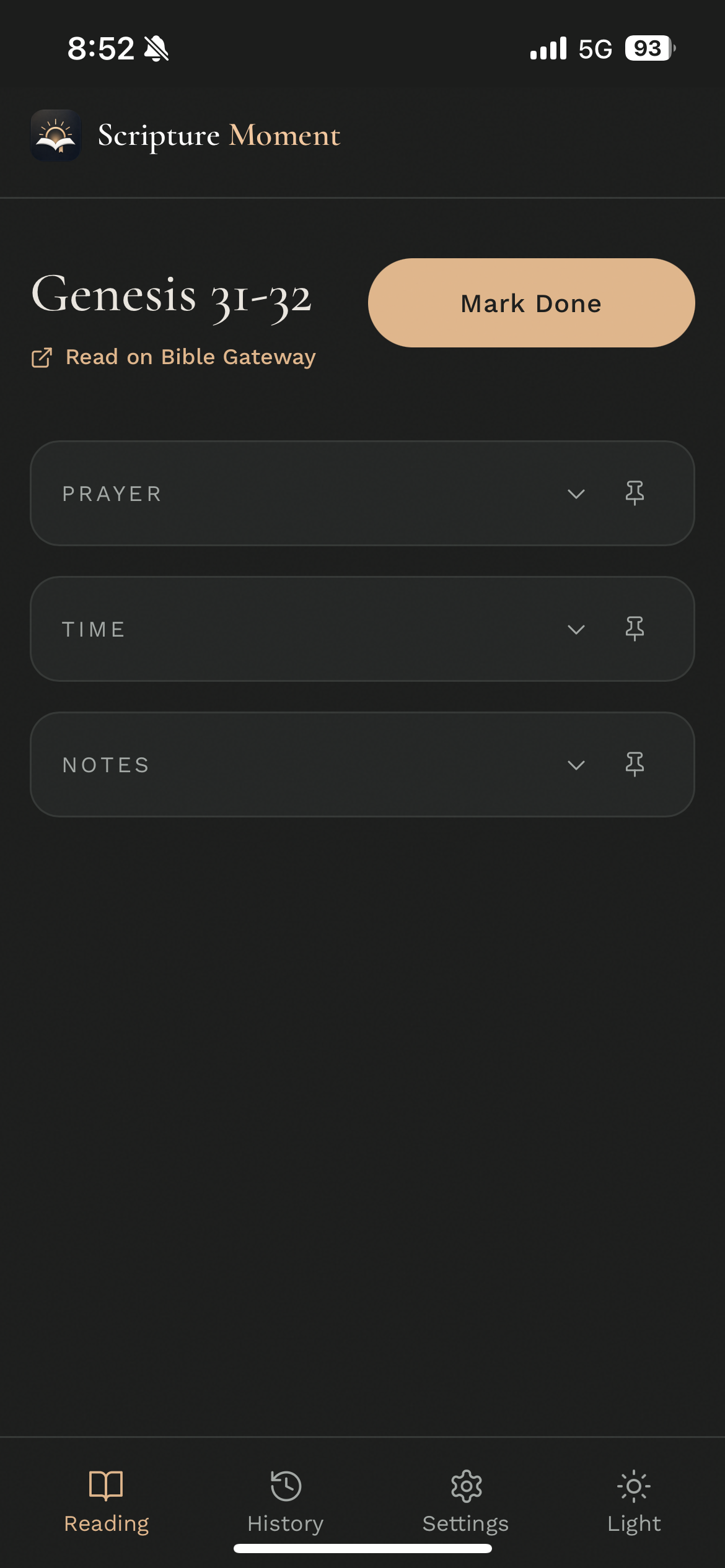
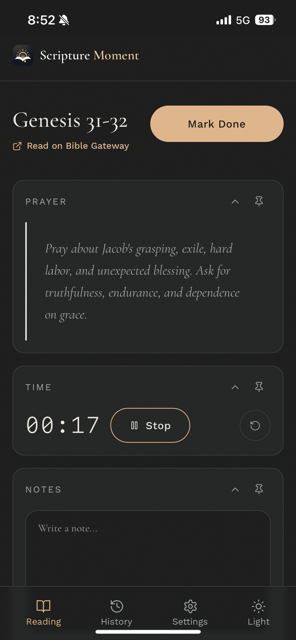
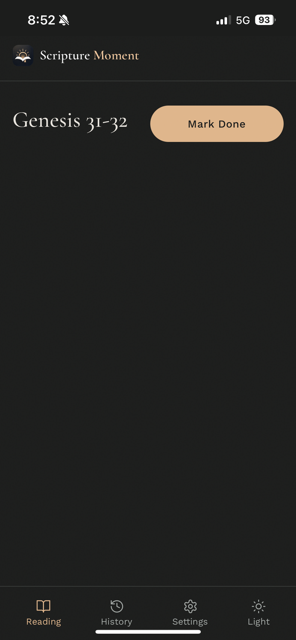
The reading screen is the main view. It shows:
- The current reading reference (book, chapter, or passage)
- A timer (on by default)
- A prayer prompt based on the passage
- A notes section
- A Bible Gateway link (shown by default, can be hidden)
- A "Mark as complete" button
When you mark a reading as complete, Scripture Moment saves your progress and loads the next reading. Come back any time — you will always see your next passage, not missed days.
Prayer prompts
Each reading includes a prayer prompt — a short sentence or question drawn from the passage to help you move from reading into prayer. The prayer summary is on by default. You can hide it in Settings if you prefer a simpler screen.
Notes
The notes section is on the reading screen. Write what stood out or a prayer response. Notes autosave while you write and can also be edited from your reading history later.
Reading history
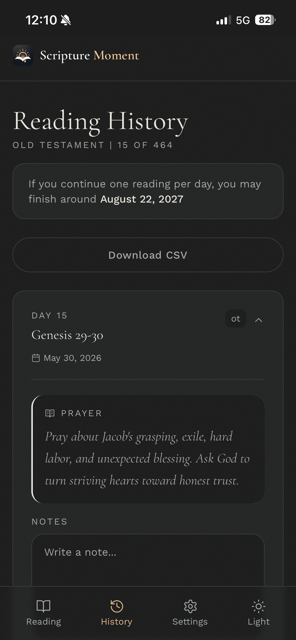
The history screen lists all your completed readings in reverse order. Tap a card to expand it and see:
- The reading reference
- The prayer summary for that day
- Your notes (editable)
- The date completed
Reminders
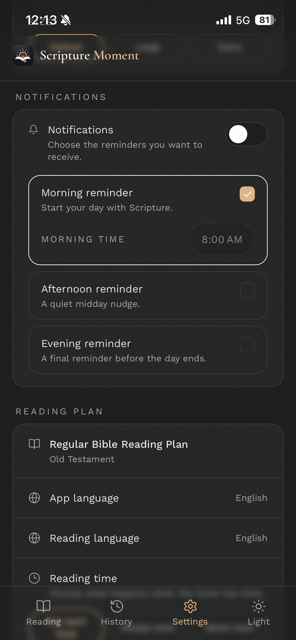
Enable morning, afternoon, or evening reminders from Settings to keep a consistent reading cue. The reminder is a gentle nudge; it does not penalize you for missing it. Phone notifications work best after Scripture Moment is installed on your phone.
Settings
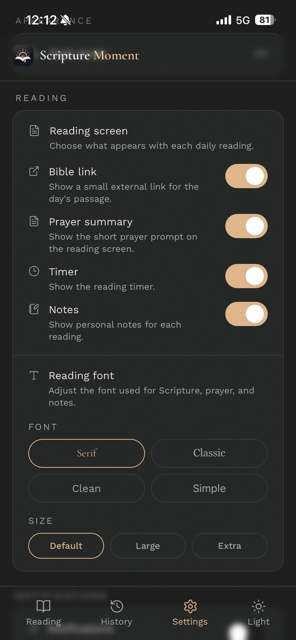
From Settings you can:
- Toggle the timer on or off
- Toggle the prayer summary on or off
- Toggle the notes section on or off
- Hide or show the Bible Gateway link
- Set morning, afternoon, or evening reminders
- Switch light/dark theme
- Change your language
- Change your reading plan or scope
- Export your data
Bible Gateway link
Bible Gateway links are shown by default and can be hidden in Settings. The link opens the passage in Bible Gateway using a matching version for your selected reading language where available.
Scripture Moment does not host Bible text. The Bible Gateway link opens the passage in your browser or the Bible Gateway app.
Export
From Settings, you can export your reading history and notes. The export includes all completed readings, prayer summaries, your notes, and completion dates. Use this to keep a personal record or move your data to another tool.
Languages
The app supports multiple languages for the interface, reading plans, and prayer prompts. Switch languages from Settings at any time without losing your progress.