How it works
Set up a plan once. Then return to the next reading whenever you are ready.
First setup
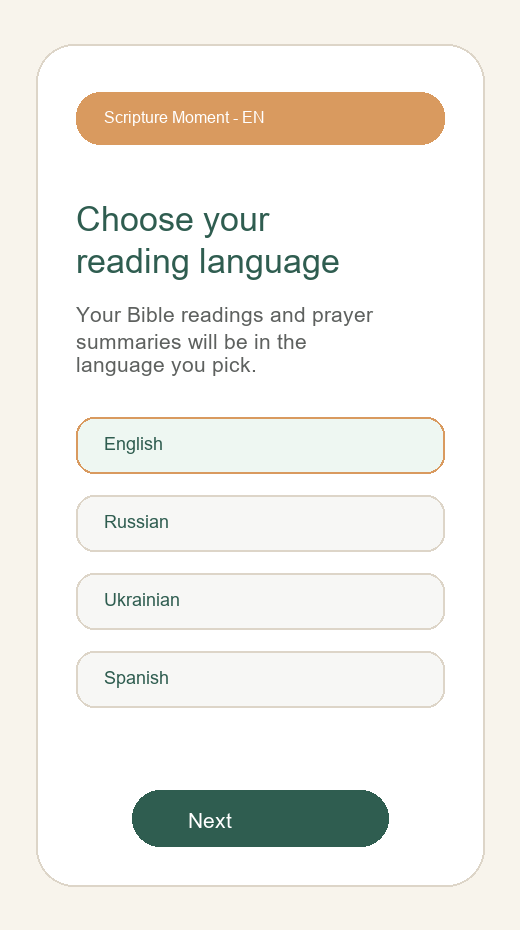
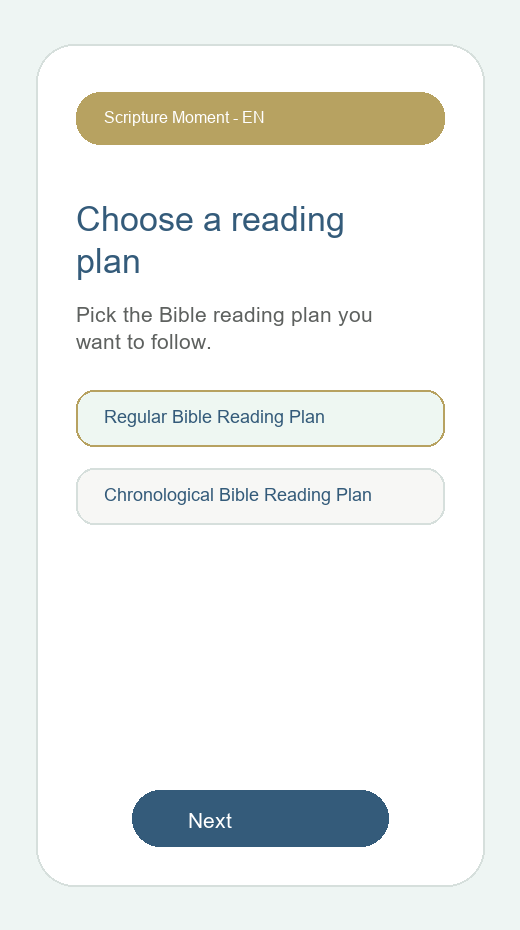
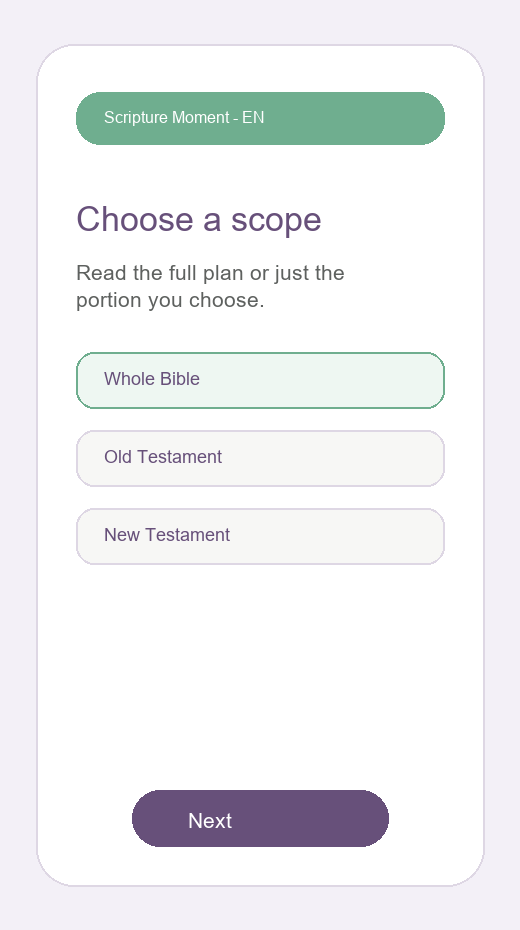
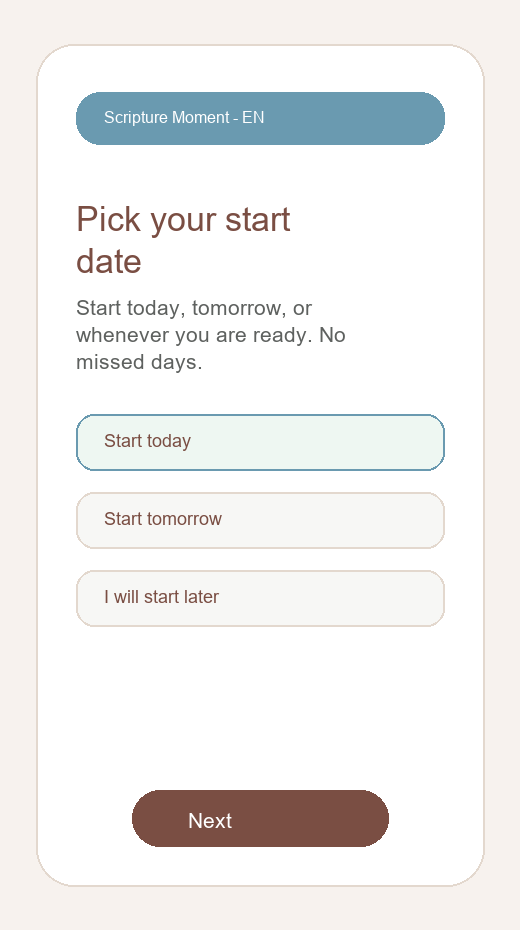
When you first open Scripture Moment, you sign in with Google and complete a short setup. You choose your app language, review the orientation, choose your reading language from the supported options, choose a plan, choose a scope, and decide when to begin.
Current plan choices are Chronological Bible Reading Plan, which follows an approximately chronological order through biblical events, and Regular Bible Reading Plan, a traditional book-by-book reading order. Each plan can be used for the Whole Bible, Old Testament only, or New Testament only.
Your reading flow
Scripture Moment tracks where you are in the plan, not how many calendar days you missed.
Open the next reading
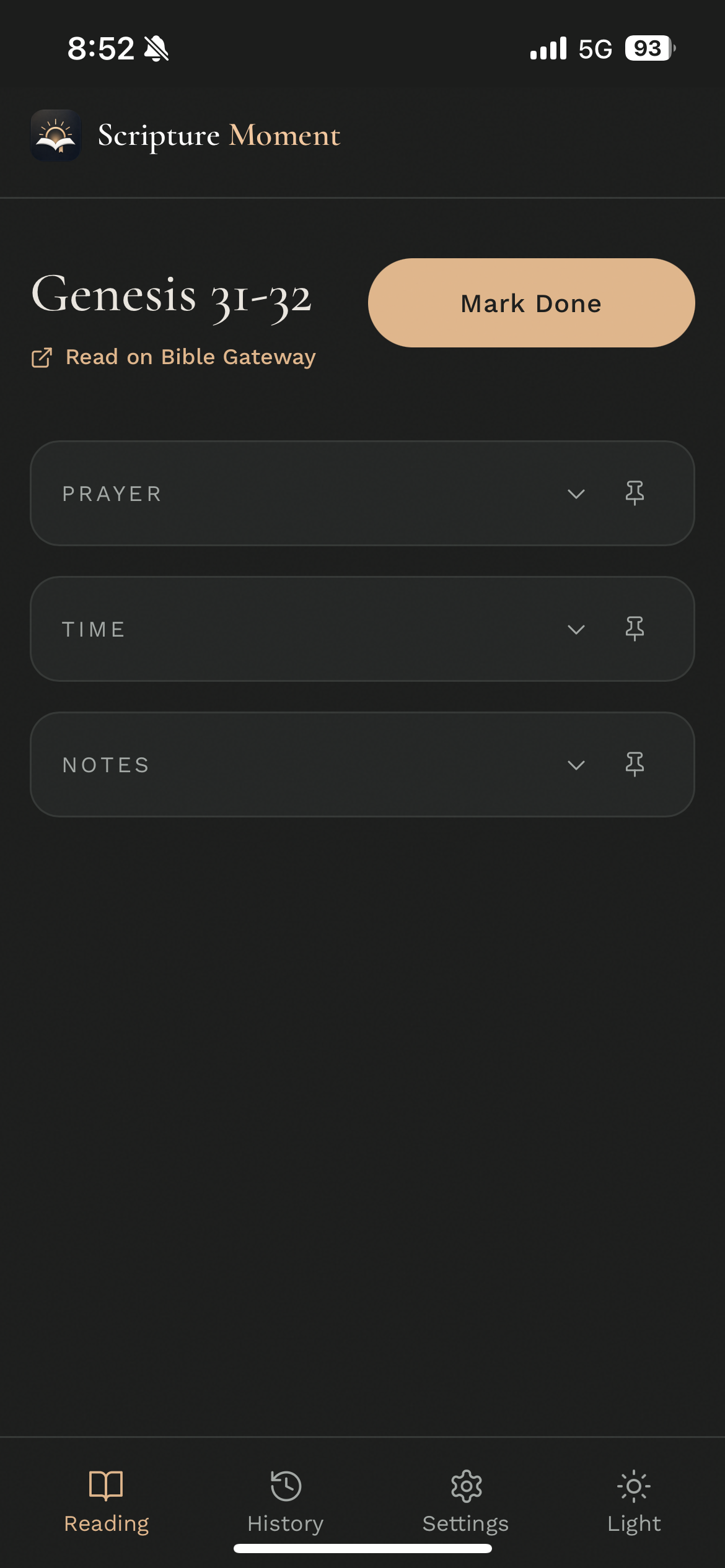
The reading screen shows the first incomplete passage in your selected scope.
Read the passage
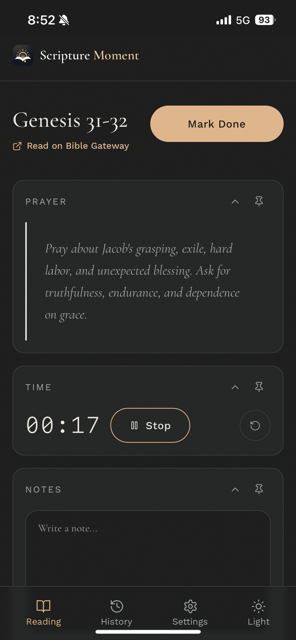
Use your own Bible or tap the Bible Gateway link shown on the screen.
Pray and note
Use the prayer prompt, timer, and notes when they help. Hide them when you want less on screen.
Mark complete
Your progress saves, and the next reading waits for your next Scripture moment.
When you come back after a gap
No catch-up stack. No streak counter to restart. You open the app and see your next reading: the same one that was waiting before you left, or the next one in sequence after your last completed passage.
Reading history
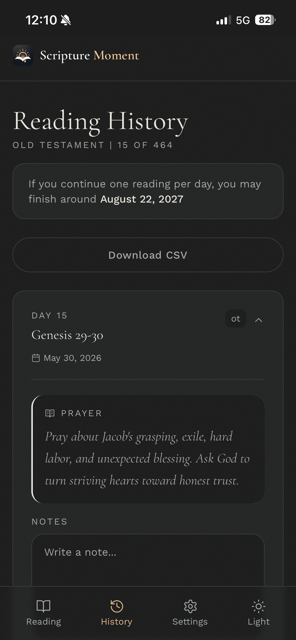
The history screen lists completed readings. Tap a card to expand it and see the prayer summary for that day plus your editable notes. You can add to those notes later if more comes to mind.
Settings and customization
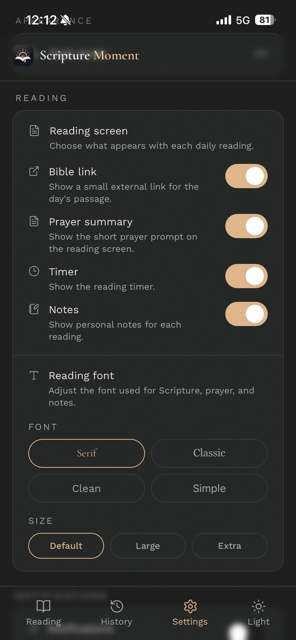
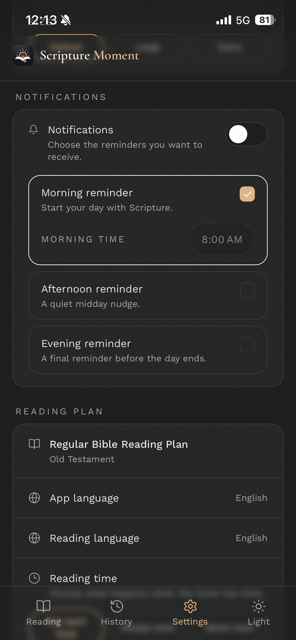
From Settings you can hide or show the Bible Gateway link, reading timer, prayer summary, and notes. You can also switch theme, change language, set morning/afternoon/evening reminders, reset your plan, export your history, or manage your account. For phone notifications to work reliably, install Scripture Moment on your phone first.
Ready to start?
Open the app, sign in with Google, and complete the short setup.
Start free with Google